Features
The JBang plugin makes Java, Kotlin, Groovy, JShell, and .jbang scripts feel at home in IntelliJ IDEA while keeping JBang as the source of truth.
This page is a visual overview; see Usage for detailed behavior and configuration.
Project integration and synchronization
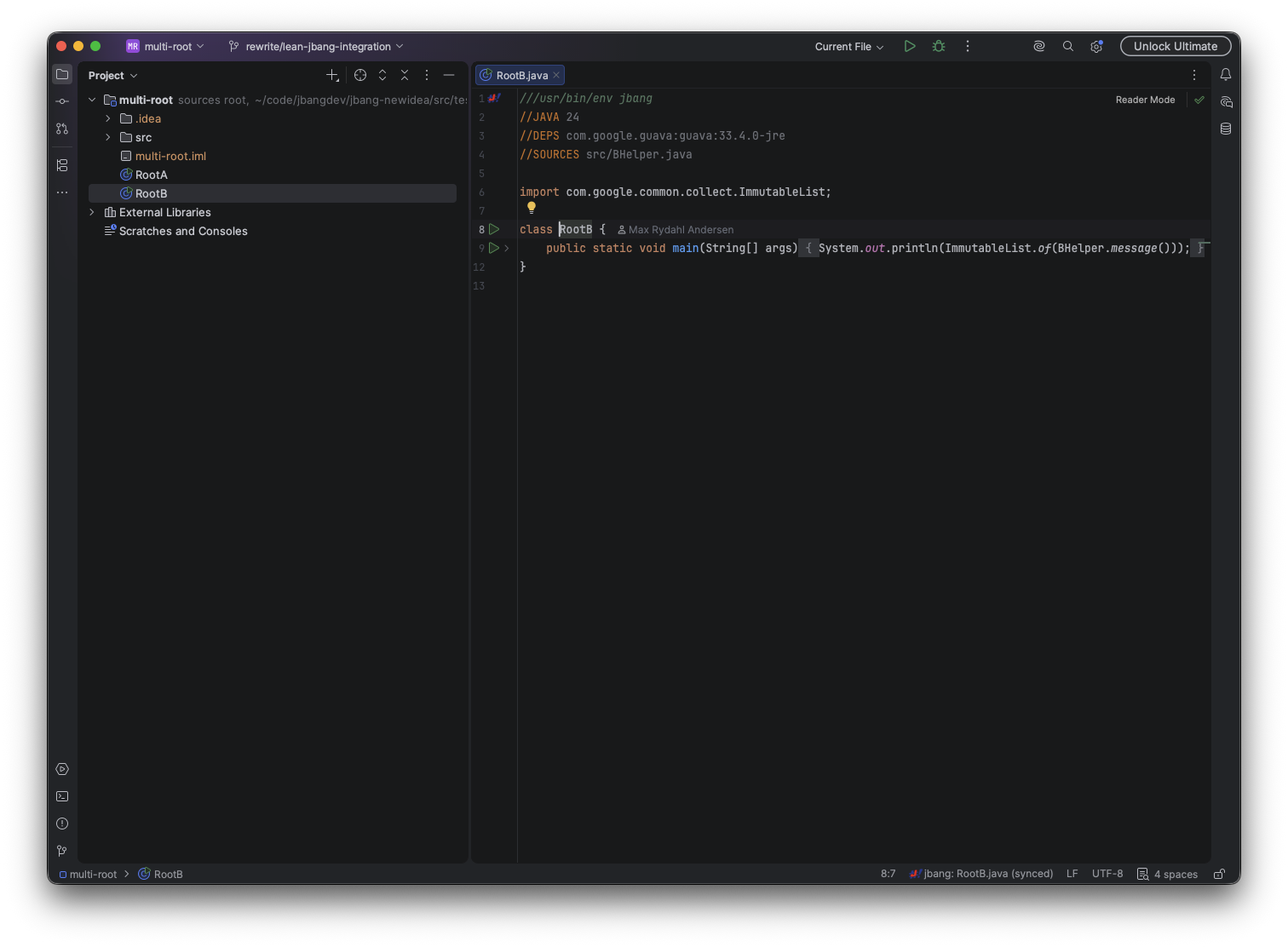
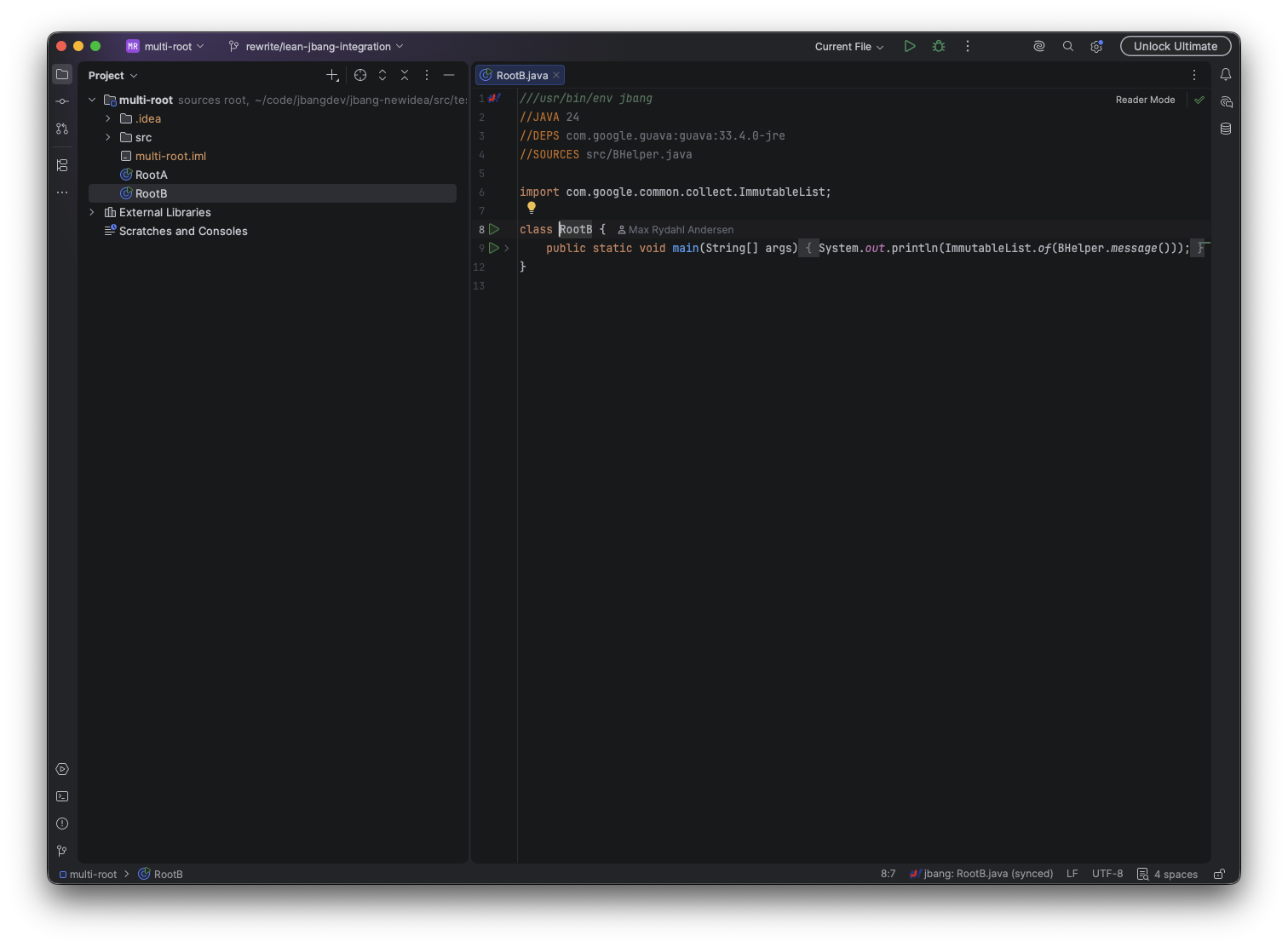
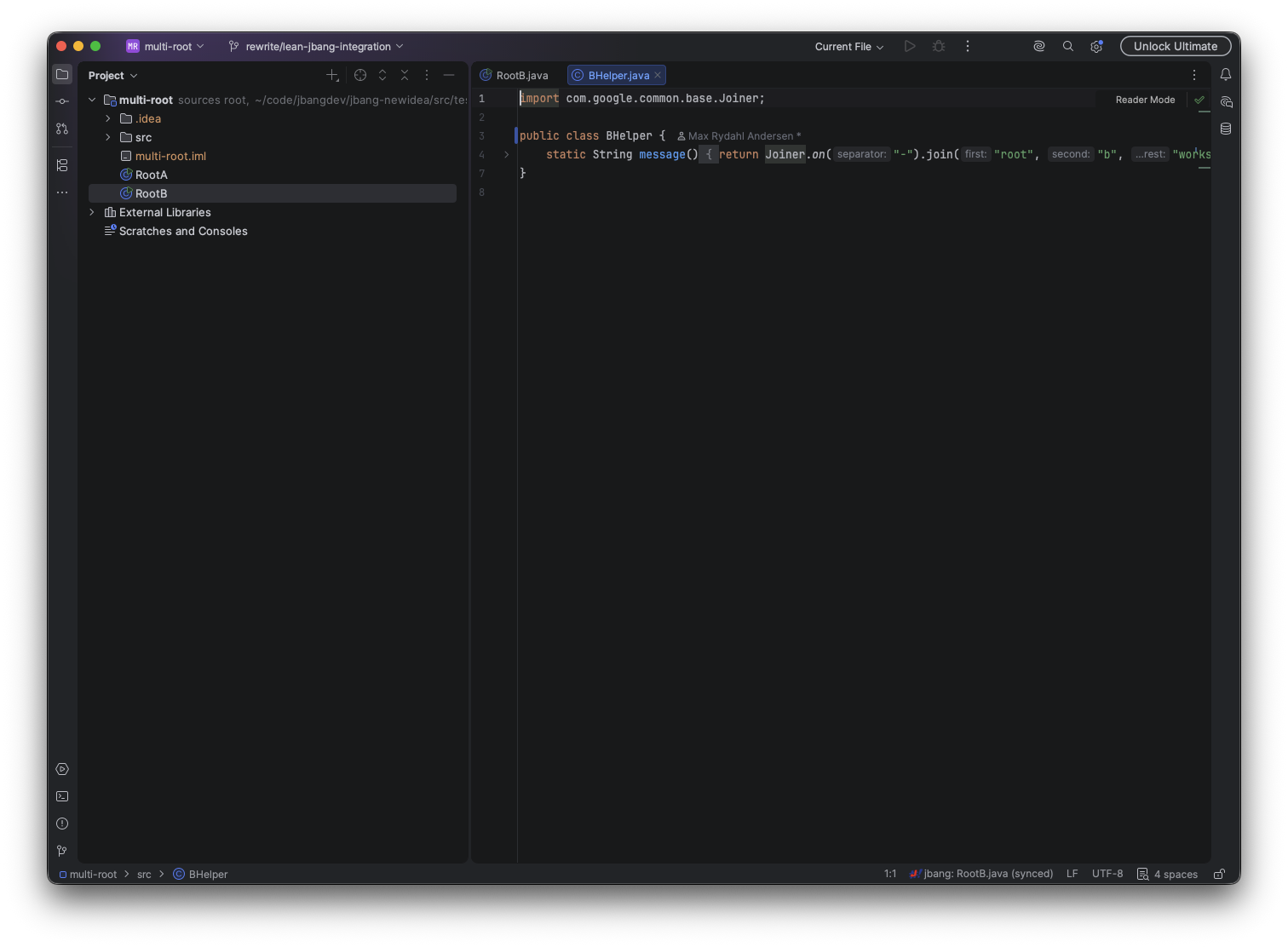
Open a directory containing JBang scripts and the plugin discovers each root, asks JBang for its metadata, and adds its dependencies and declared sources to IntelliJ.
These scripts can be inside Maven, Gradle or IntellJ project and they will still work and the plugin does not modify Gradle, Maven, or IntelliJ module files.
Synchronization runs when a root is opened or saved, and can be requested explicitly with Sync JBang Project. The status widget shows the active root and whether its latest synchronization succeeded.
Multiple JBang roots
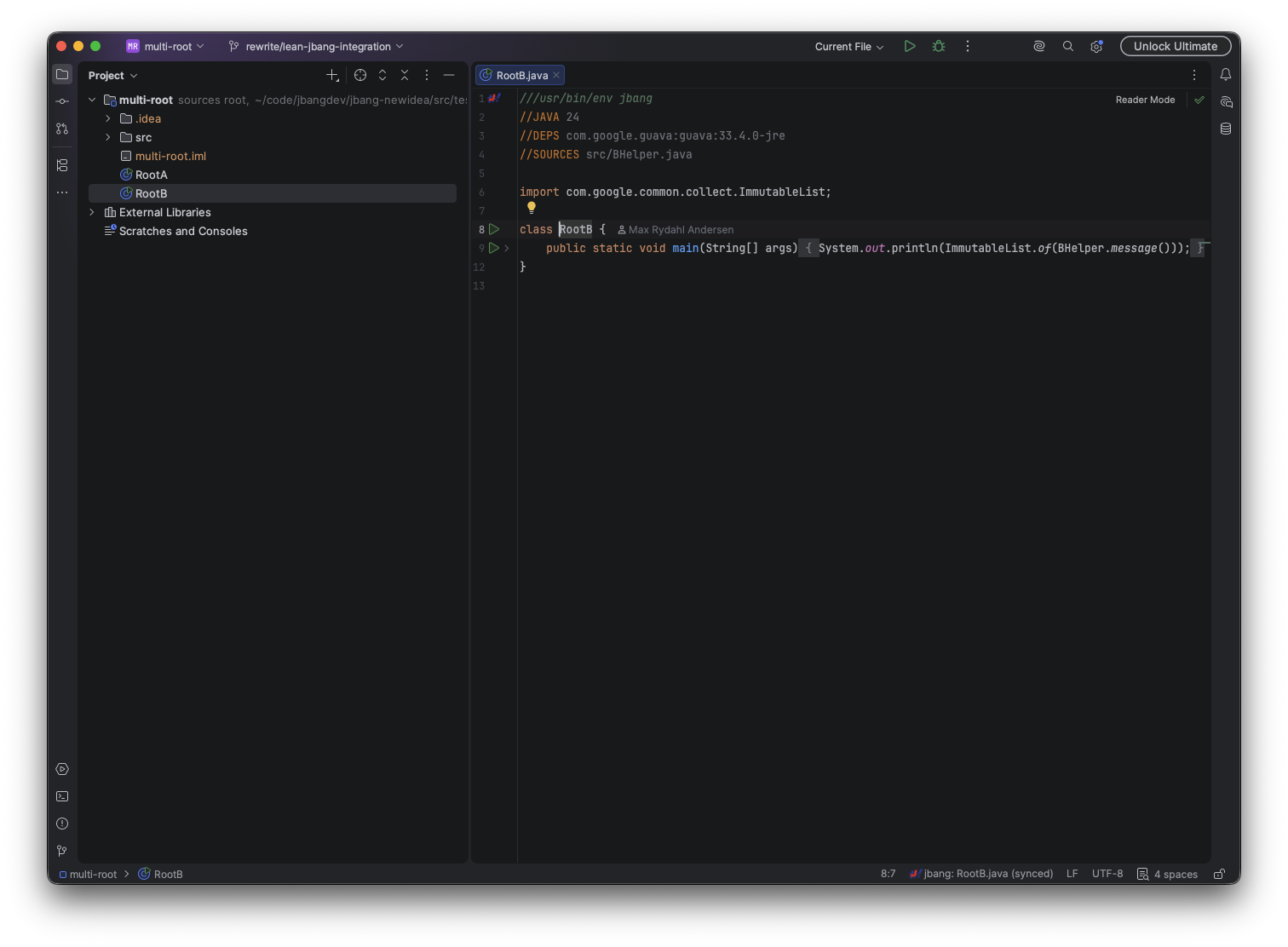
Each JBang root keeps an isolated classpath, source set, and requested JDK. Opening a root selects it automatically; use the status widget to switch roots when a source belongs to more than one script. Dependencies are never merged between roots.
Completion and diagnostics
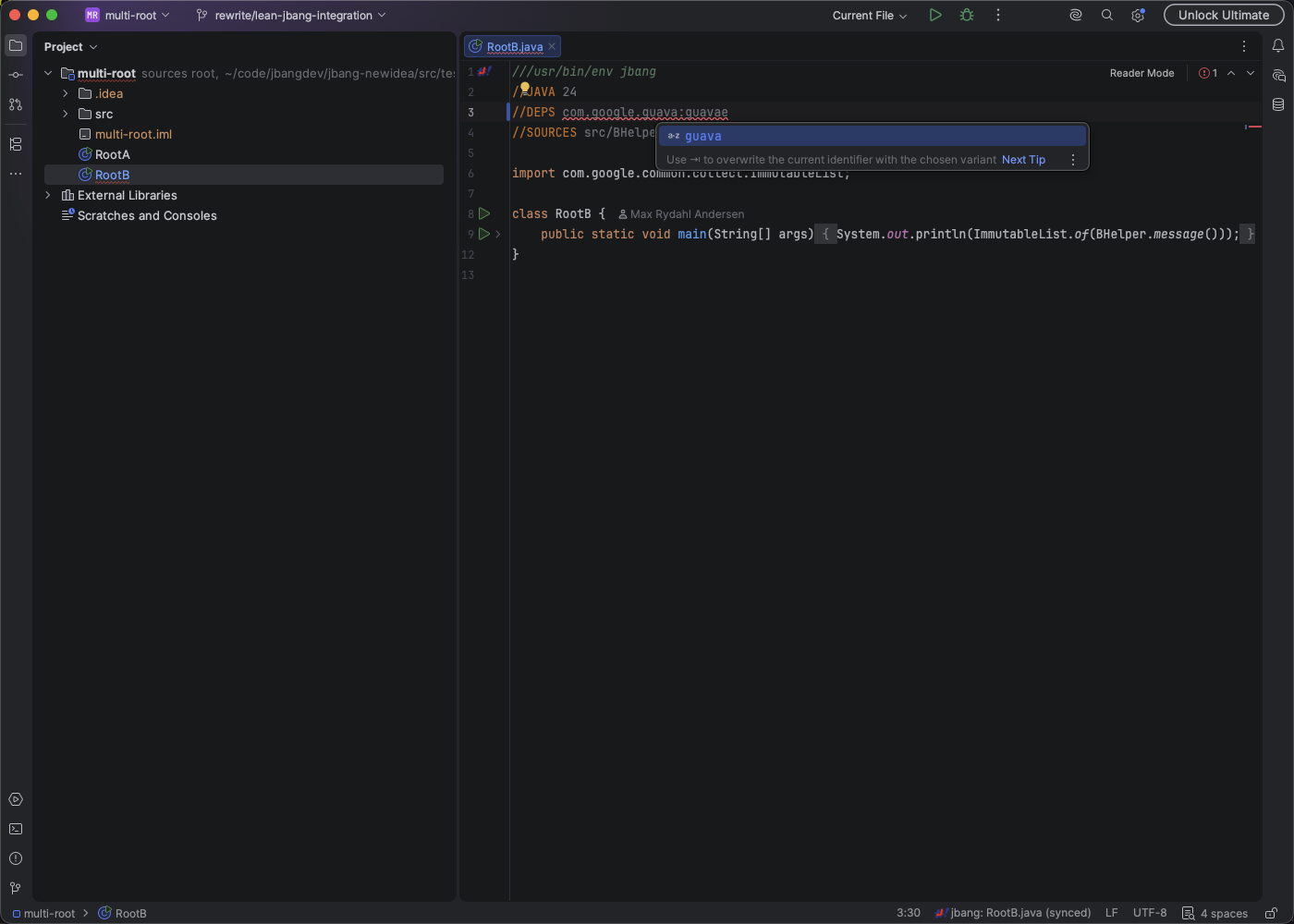
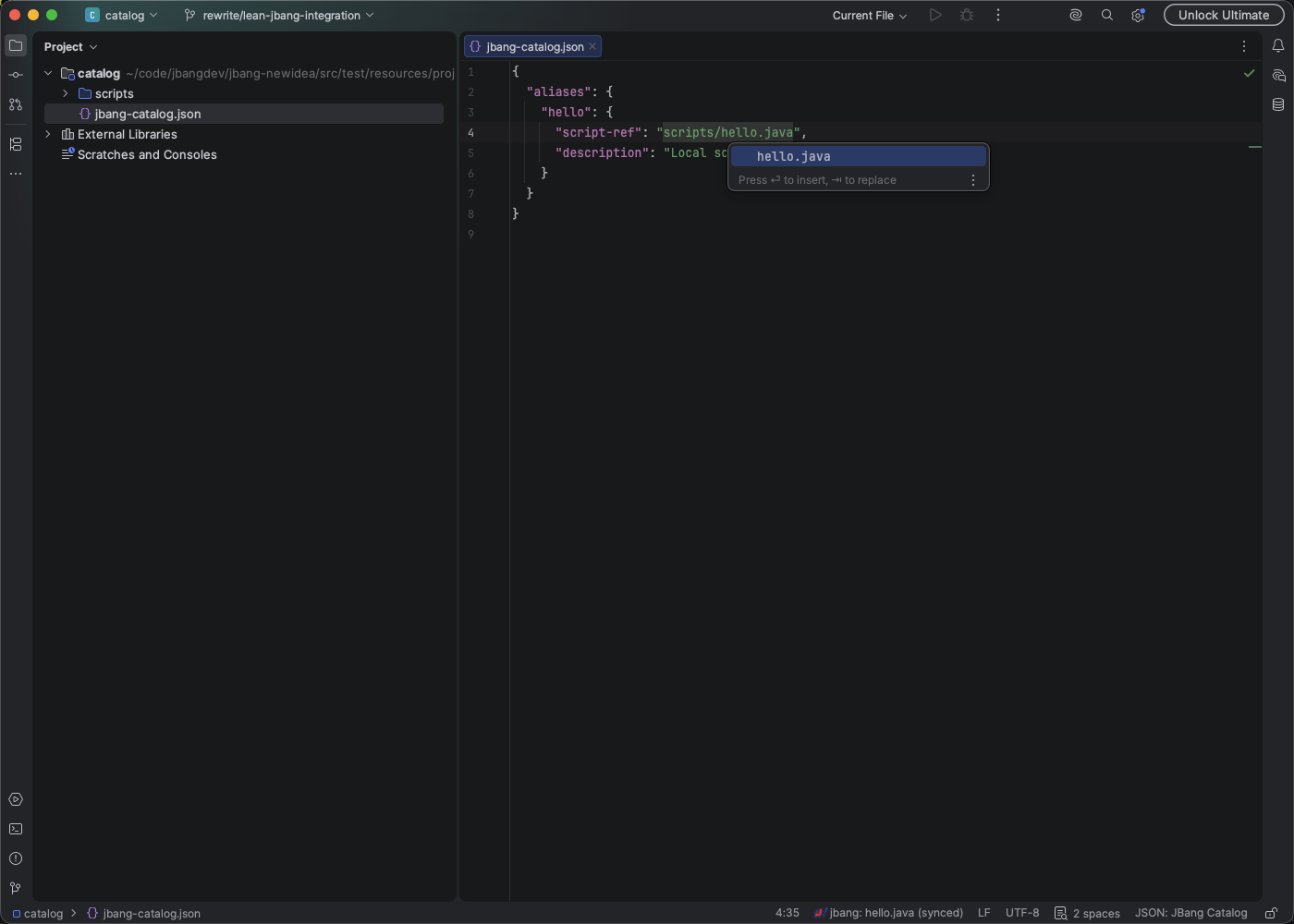
Basic completion understands JBang directives, Maven coordinates, //SOURCES and //FILES paths, and local catalog script-ref values.
Maven suggestions distinguish local, remote, and snapshot results.
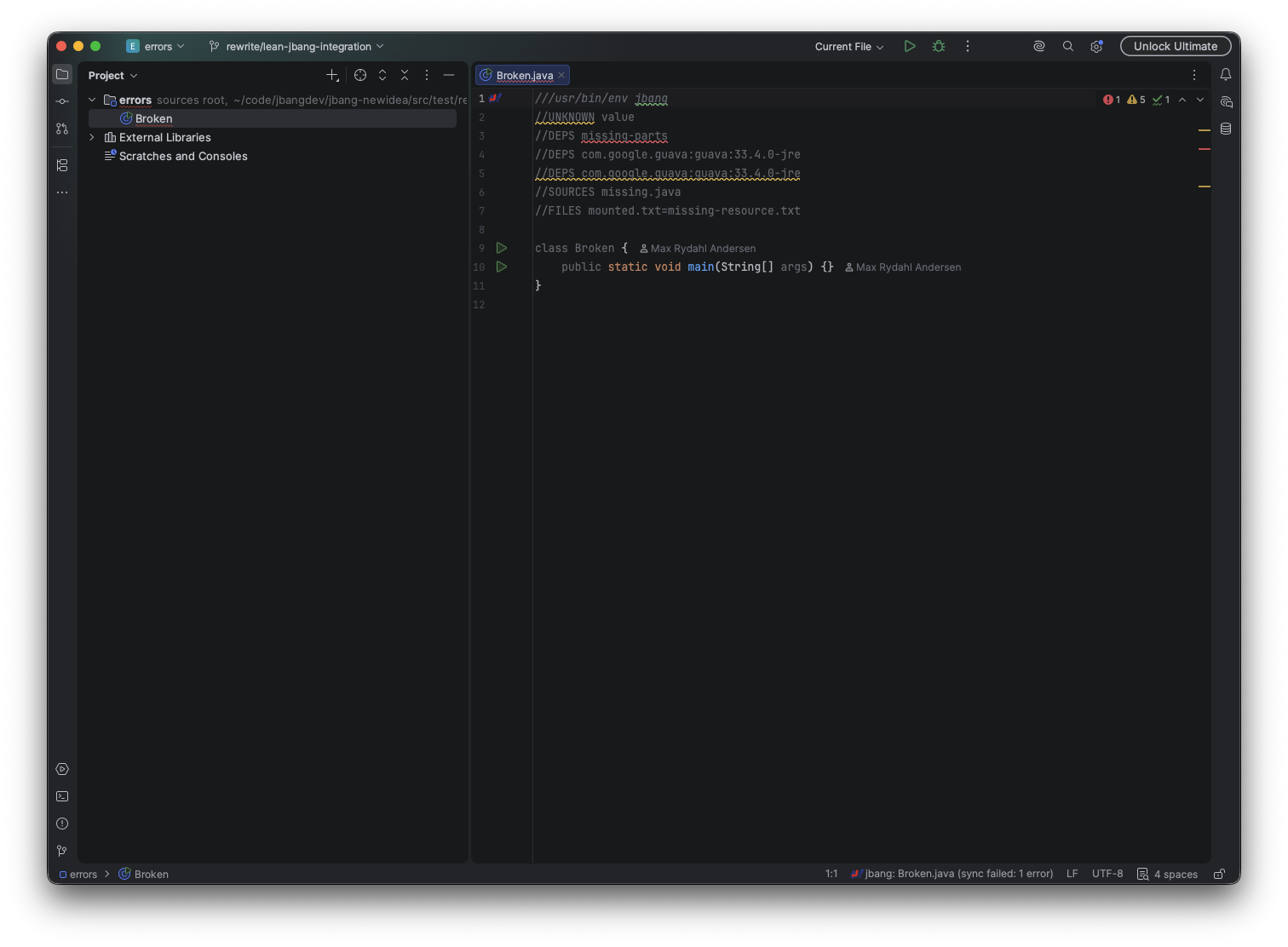
The editor reports malformed or duplicate dependencies, unknown directives, and unresolved sources or files at the affected token.
Sources and navigation
Files declared with //SOURCES participate in code resolution using the owning root’s classpath.
//FILES supports both direct paths and JBang’s target=source mapping syntax.
Completion suggests nearby files, while Ctrl/Cmd-click navigates to local sources, resources, and catalog scripts.
Run and Debug
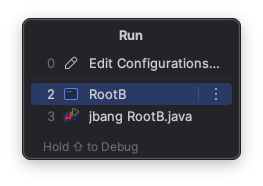
Run or debug a script from its gutter icon, the editor or Project view context menu, or a reusable JBang run configuration. Debug starts JBang with JDWP and attaches IntelliJ’s debugger automatically.
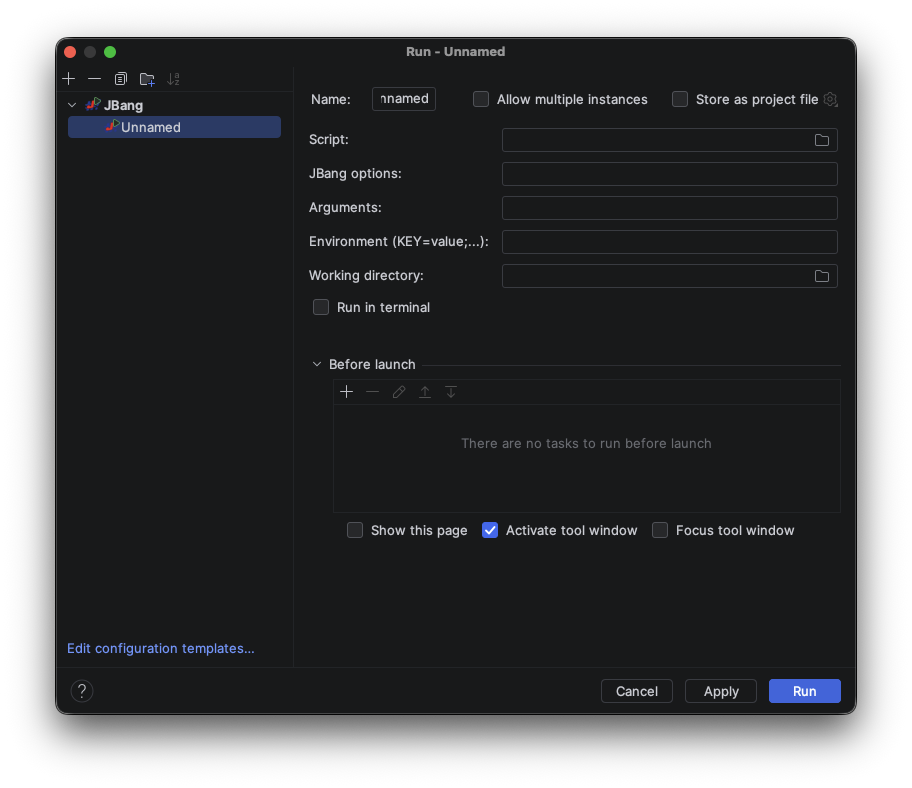
Run configurations support JBang options, quoted script arguments, environment variables, a working directory, and execution in IntelliJ’s Terminal tool window.
Java versions and dependencies
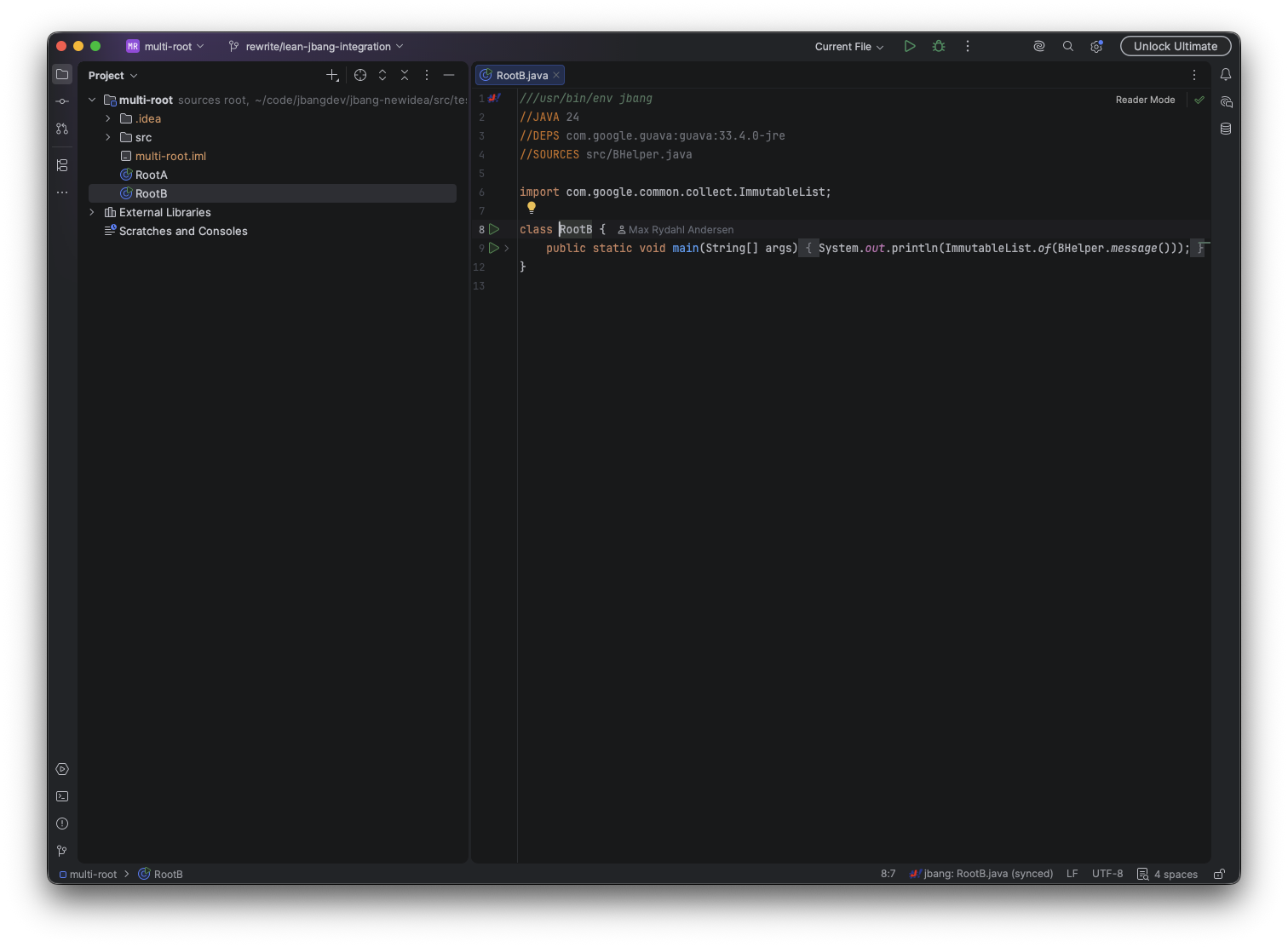
A root’s //JAVA directive selects its JBang-managed JDK.
For standalone projects, the plugin registers that JDK with IntelliJ and switches the project SDK with the active root.
Gradle and Maven projects retain the SDK selected by their build model.
Resolved JARs and declared source roots appear as root-specific entries under External Libraries.
Creating scripts
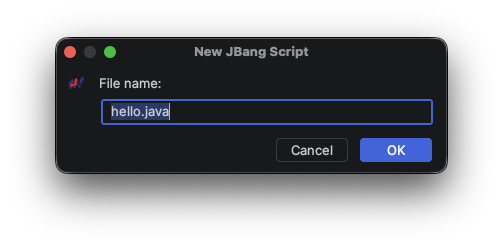
Choose New > JBang Script in the Project view to load templates from the JBang CLI.
Select a template or enter a catalog-qualified ID such as template@catalog. The plugin resolves qualified
IDs against that catalog, loads their declared properties, and reports the exact resolved template and catalog.
Edit the suggested filename and property values as needed; the plugin passes only changed values to
jbang init and leaves unchanged defaults to JBang.
A live command preview shows the exact jbang init invocation, with a Copy button that copies it to the clipboard.
Destinations are validated before creation: existing files, absolute paths, and paths that escape the selected directory are rejected.