Usage
Recognizing JBang scripts
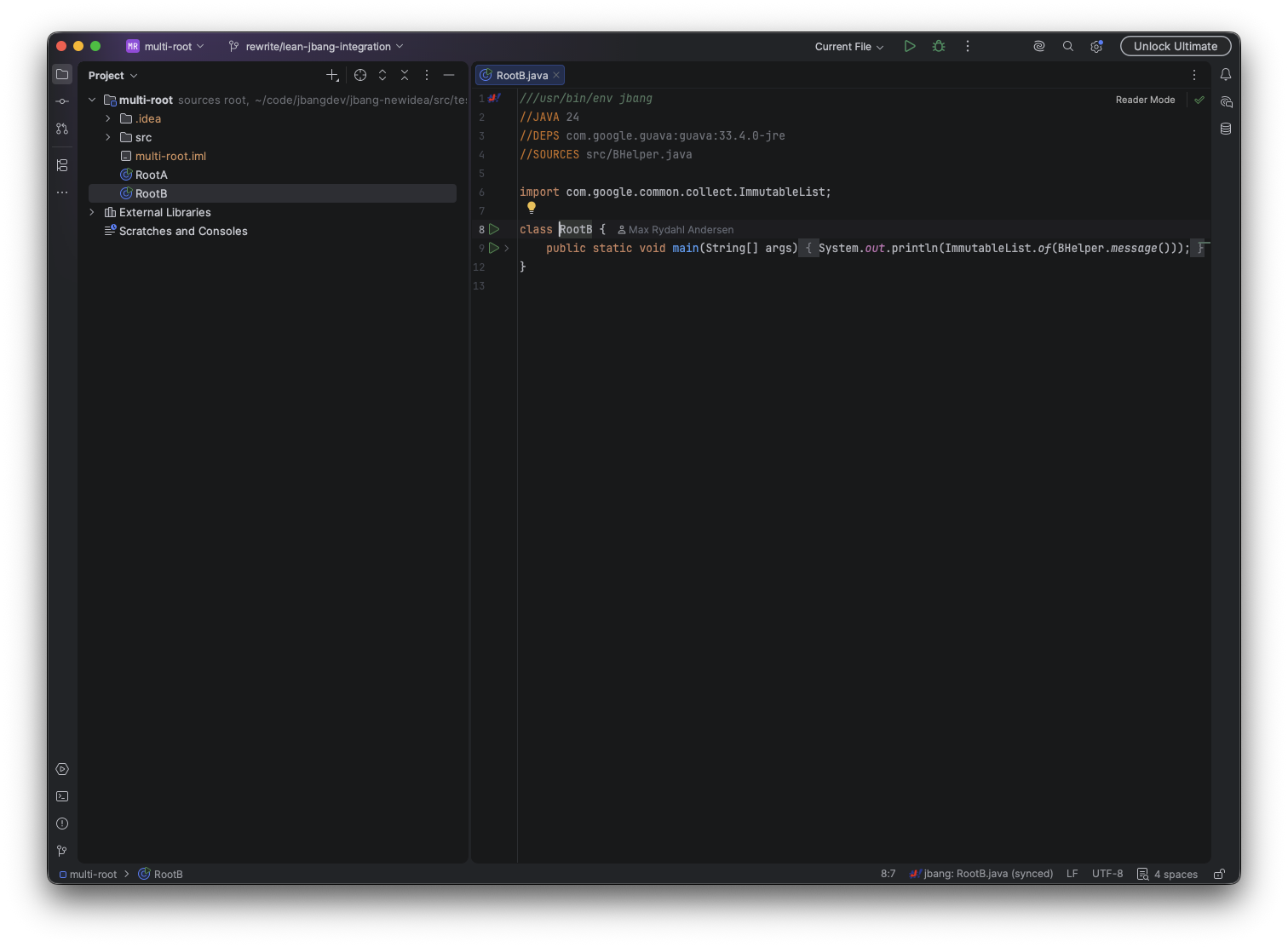
A Java, Kotlin, Groovy, JShell, or .jbang file becomes a JBang root when its first 200 lines contain the JBang shebang or a JBang directive such as //DEPS, //JAVA, //SOURCES, or //FILES.
jbang.java, jbang.kt, and jbang.groovy are also roots.
Files included through //SOURCES belong to their root and inherit its dependency classpath.
Synchronization
The plugin invokes jbang info tools --quiet in the script directory and uses the returned classpath, sources, files, errors, and Java version.
Synchronization runs when:
-
the project opens and roots are discovered;
-
an uncached root is opened;
-
a root is saved while Auto-sync dependencies on save is enabled; or
-
Sync JBang Project is selected from the editor, Project view, or JBang status menu.
Explicit synchronization saves the selected root first.
The status bar reports syncing, synced, or sync failed only after IntelliJ has applied the updated library model.
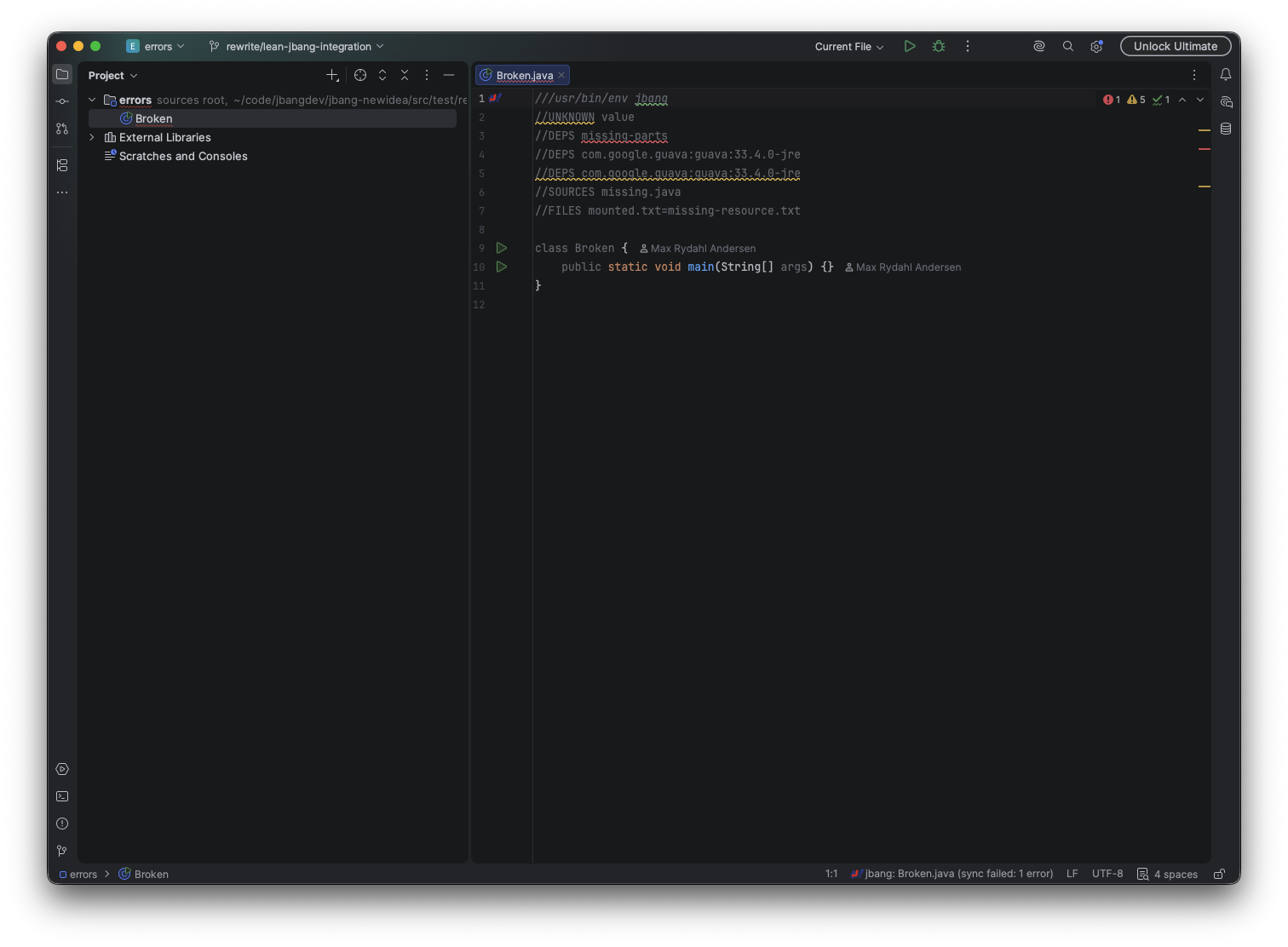
Hover a failed status to read every JBang error; the same details appear in the notification and on the failing directive where possible.
Multiple JBang roots
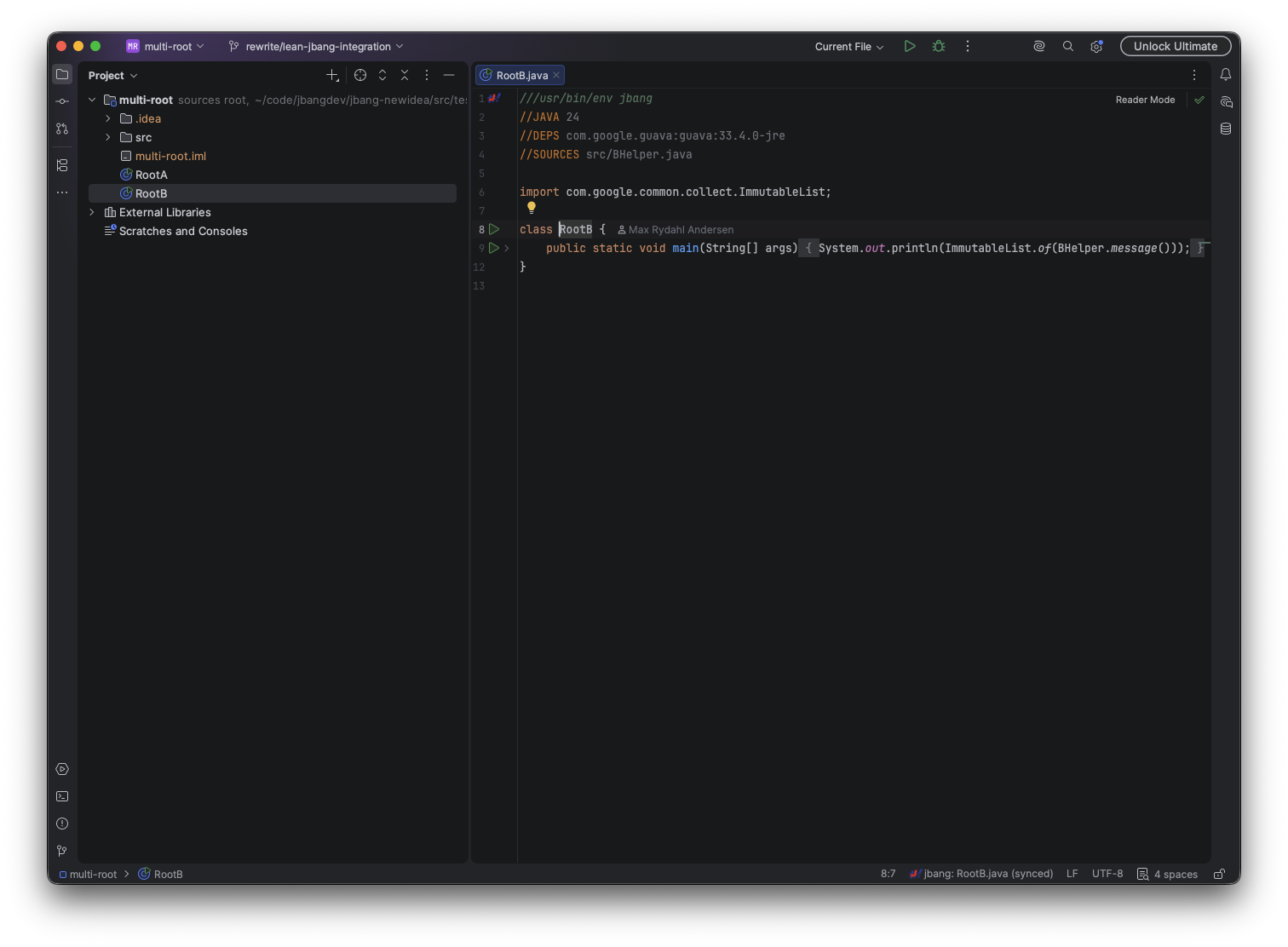
Each root keeps a separate classpath and requested JDK. Opening a root selects it automatically. For a source shared by several roots, use the JBang status widget to choose the owner whose classpath should be active. When the selected root is not the current editor file, the plugin offers to open it; Do not ask again remembers that choice. Changing roots does not merge dependencies between scripts.
Sources and files
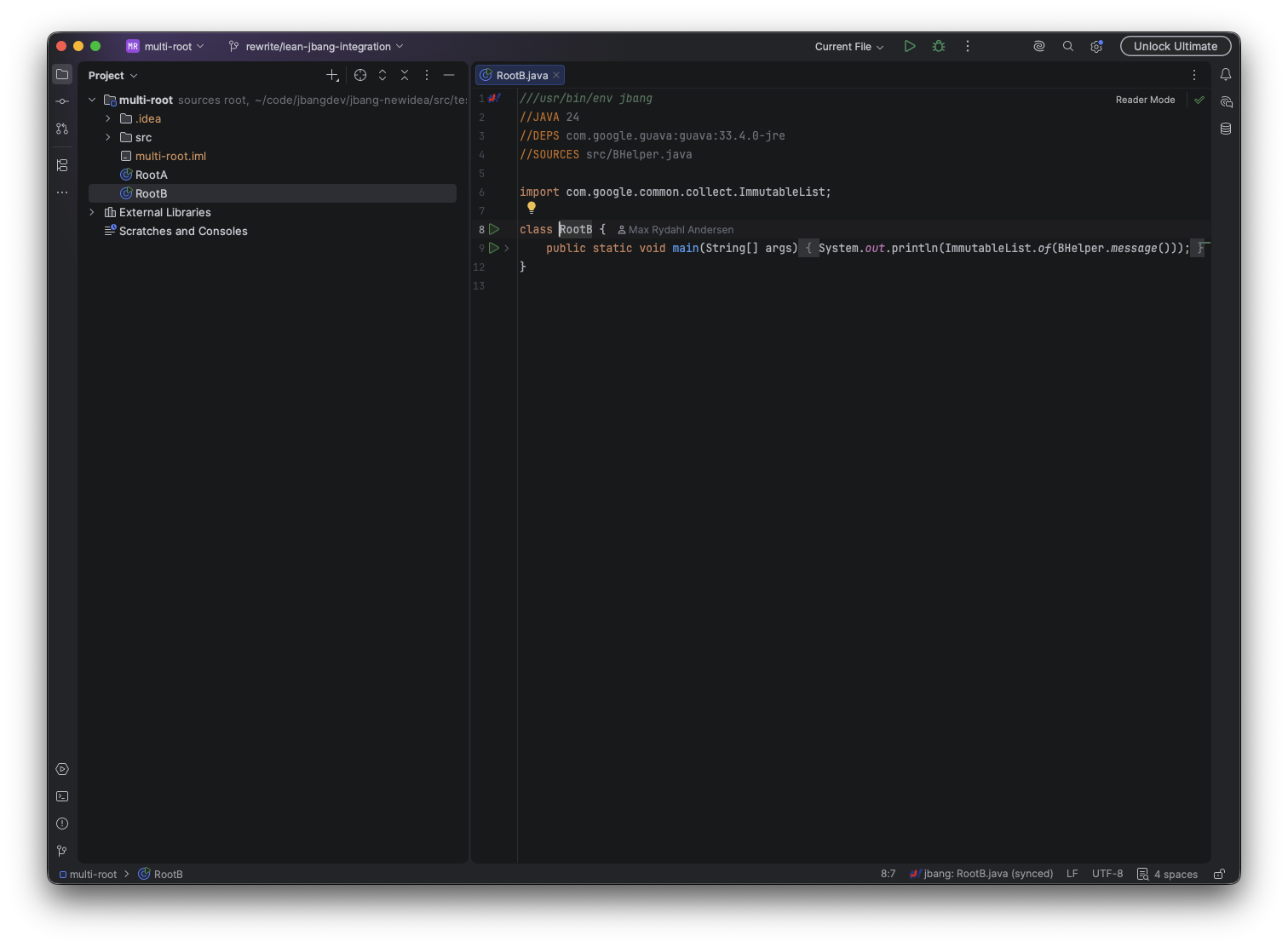
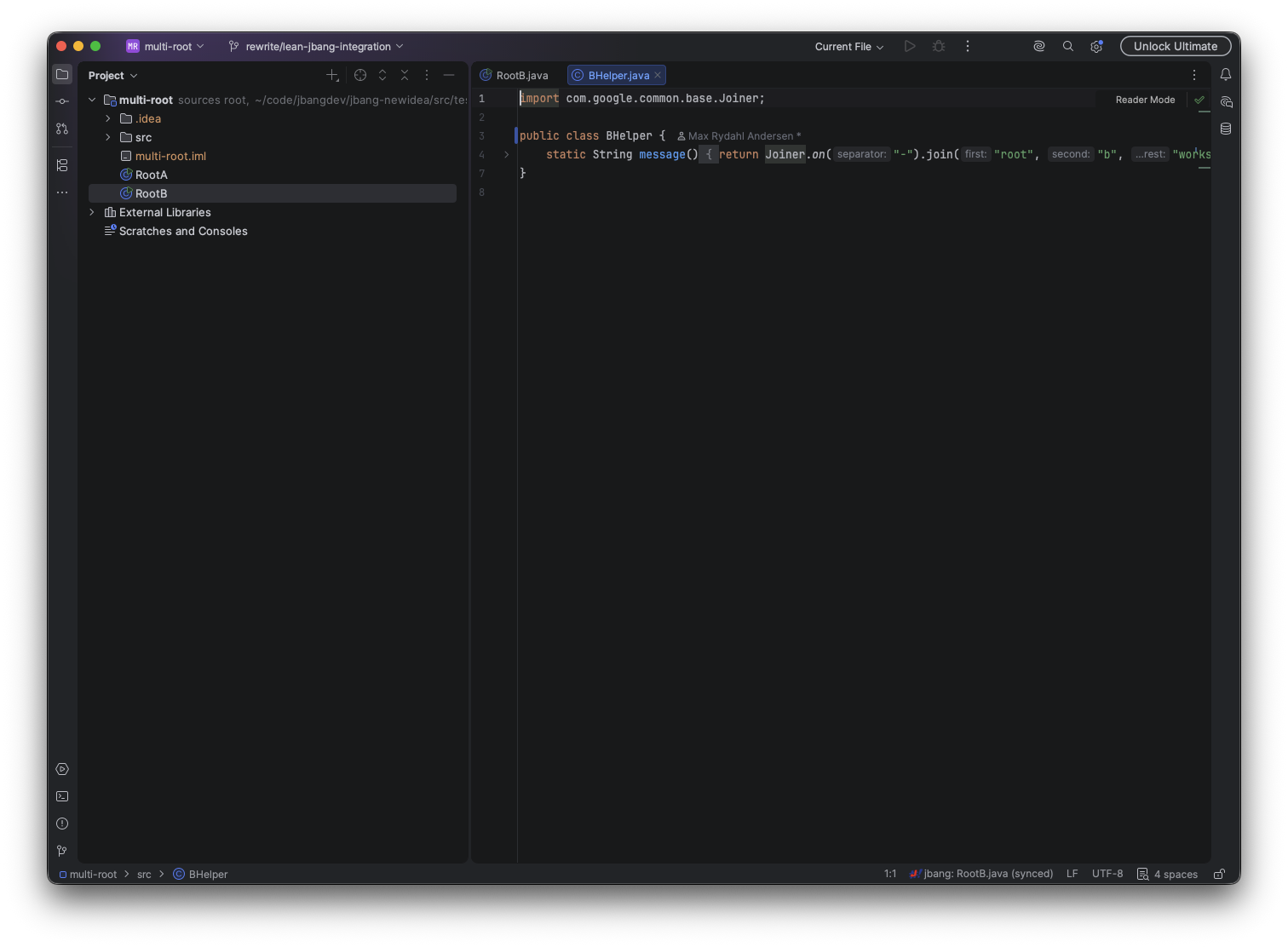
//SOURCES adds source files to the script compilation and IntelliJ resolve scope.
Completion suggests local source paths, and Ctrl/Cmd-click navigates to the selected file.
Only files declared by the root are resolved; sibling sources declared by another root remain isolated.
//FILES copies resources when JBang runs the script.
Both plain resources and JBang’s target=source mapping syntax are supported:
//SOURCES src/Message.java
//FILES config/app.properties
//FILES application.properties=config/dev.properties
Completion and navigation operate on the source side of a mapping. Missing resources are underlined at the exact token and show the JBang error on hover.
Completion and navigation
Directives
Type // at the beginning of a comment and invoke basic completion to list JBang directives.
Directive completion is not offered after directive arguments.
Unknown directives, malformed coordinates, and duplicate //DEPS entries are reported in the editor.
Maven coordinates
//DEPS completion supports:
-
group and artifact search before the first colon;
-
artifact completion after
group:; and -
version completion after
group:artifact:.
Local Maven repository matches are returned first and marked local.
Repository/central results are marked remote; snapshot versions are identified separately.
Remote requests are cancellable and time bounded.
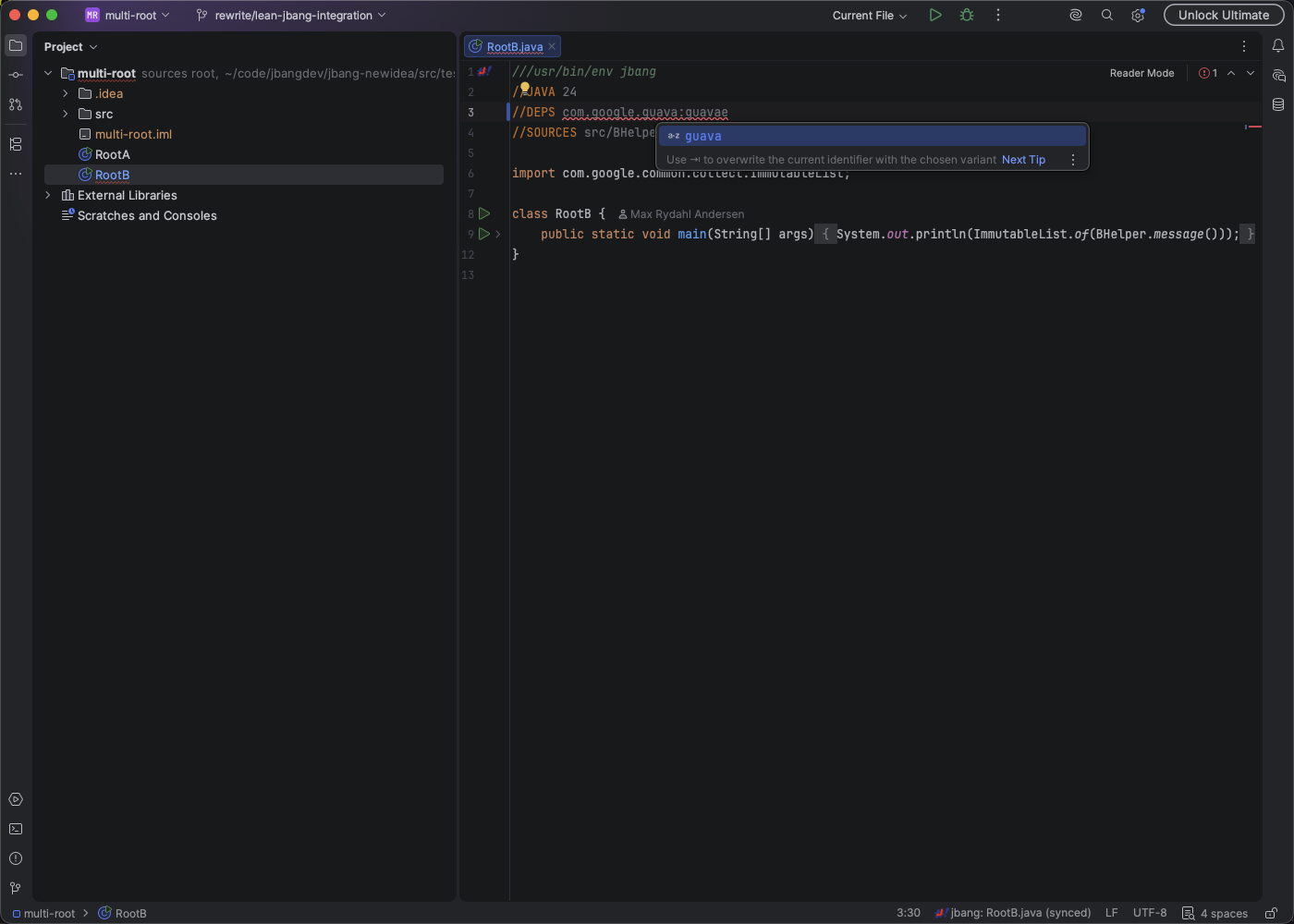
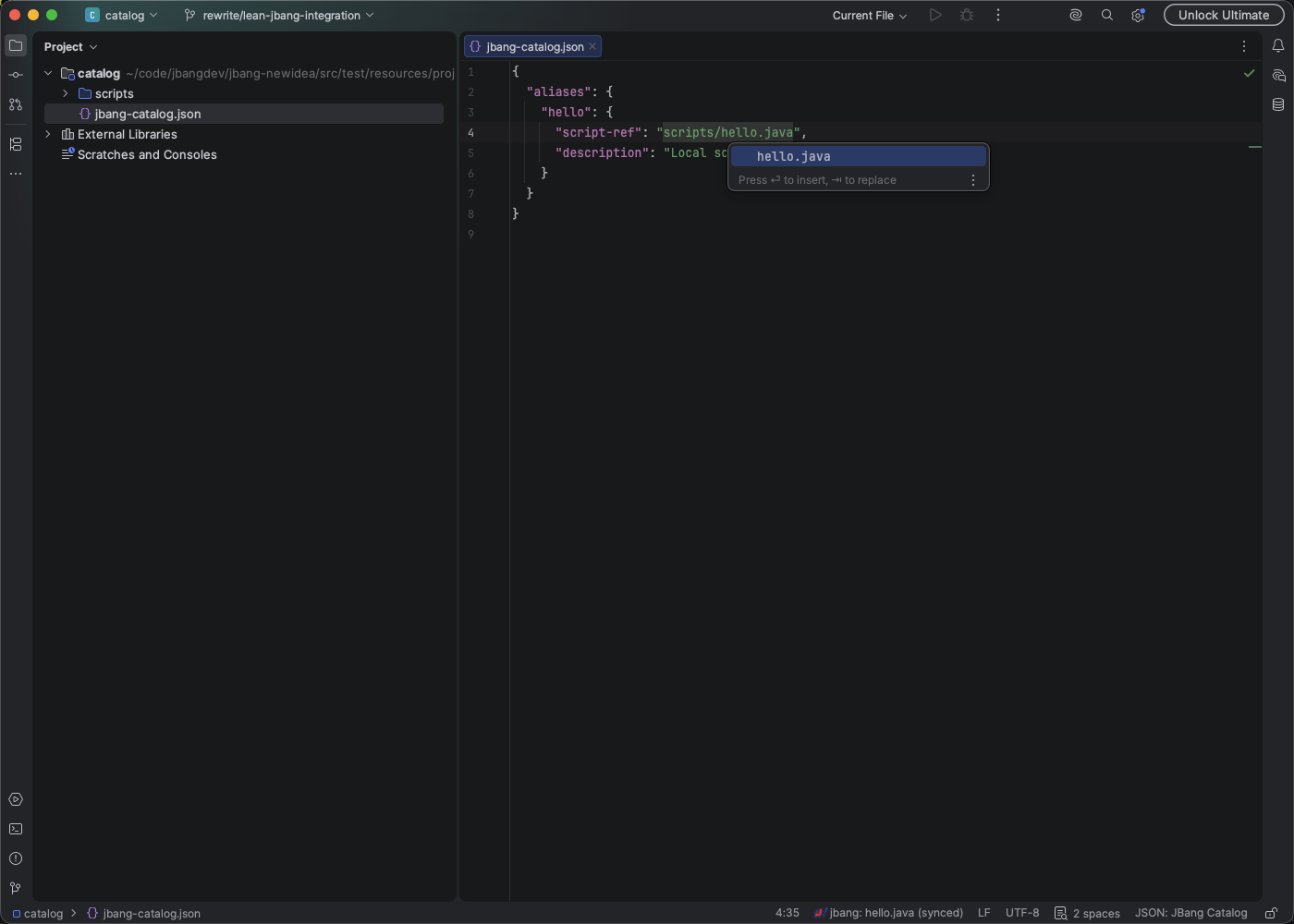
Run and Debug
Use a gutter icon, the editor/Project view context menu, or a JBang run configuration. Context actions remain available for scripts outside normal source roots. Both the Run and Debug executors recognize JBang configurations. Debug launches JBang with JDWP and attaches IntelliJ’s debugger automatically.
The Run popup also exposes the same configuration as a Debug action.
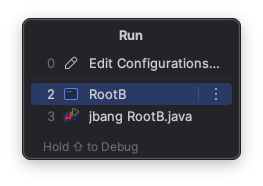
A run configuration supports:
-
script path;
-
JBang options;
-
quoted script arguments;
-
environment variables as
KEY=valueentries; -
working directory; and
-
optional execution in the Terminal tool window (Windows falls back to the shell-independent PTY runner).
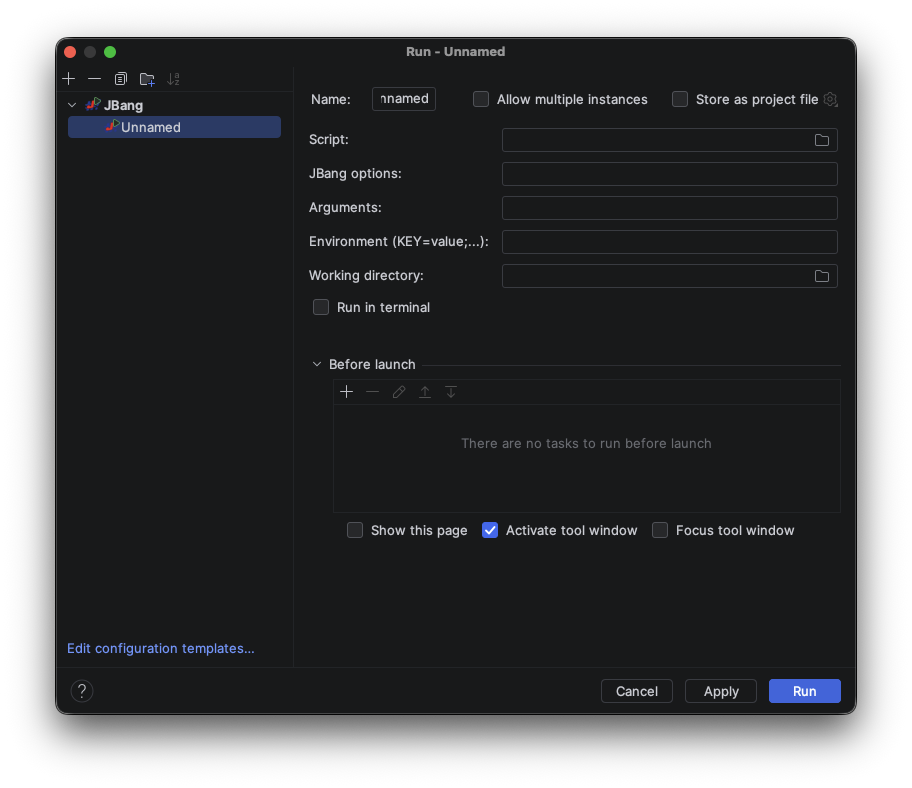
Java versions and JDKs
When JBang reports an availableJdkPath, the plugin registers it as an IntelliJ SDK named from the requested //JAVA version.
Selecting or re-synchronizing a root updates the SDK for a standalone JBang project.
Projects containing pom.xml, build.gradle, or build.gradle.kts keep their build-system project SDK unchanged.
Resolved dependency JARs and declared source roots appear under External Libraries.
Creating scripts
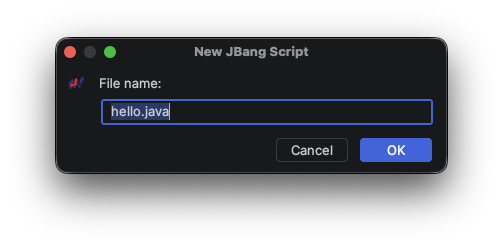
In the Project view, choose New > JBang Script.
The plugin loads templates and their declared properties from jbang template list, asks for a template,
suggests a filename such as readme.md, hello.kt, or <template>.java, and creates the file with jbang init.
The filename remains editable before creation. You can also enter a catalog-qualified template ID such as
q-aws-lambda@jbang-cloud directly. The plugin resolves it against the named catalog, reports the exact
resolved template and catalog, and loads its property descriptions and defaults into the key/value table.
Only changed values are passed to jbang init as -Dkey=value overrides.
The dialog shows a live command preview with a Copy button, and validates the destination before creating the file.
Settings
Open Settings/Preferences > Tools > JBang to configure the executable path and automatic synchronization. Re-enable Ask to open a root selected from the status bar there to clear a remembered Do not ask again choice. See Install JBang for executable lookup order.